
How Do I Connect Alexa to New WiFi in 2024
Introduction
Connecting your Alexa to a new WiFi network can be essential, whether you’ve changed internet service providers, upgraded your router, or moved to a new location. Ensuring that your Alexa device is efficiently connected to WiFi allows you to enjoy seamless voice commands, music streaming, smart home control, and more. This guide will help you smoothly transition your Alexa to a new WiFi setup, providing solutions and insights every step of the way.
Shifting from why you need to connect Alexa to a new WiFi network, let’s dive into reasons for such connectivity changes.
Why You Might Need to Connect Alexa to a New WiFi Network
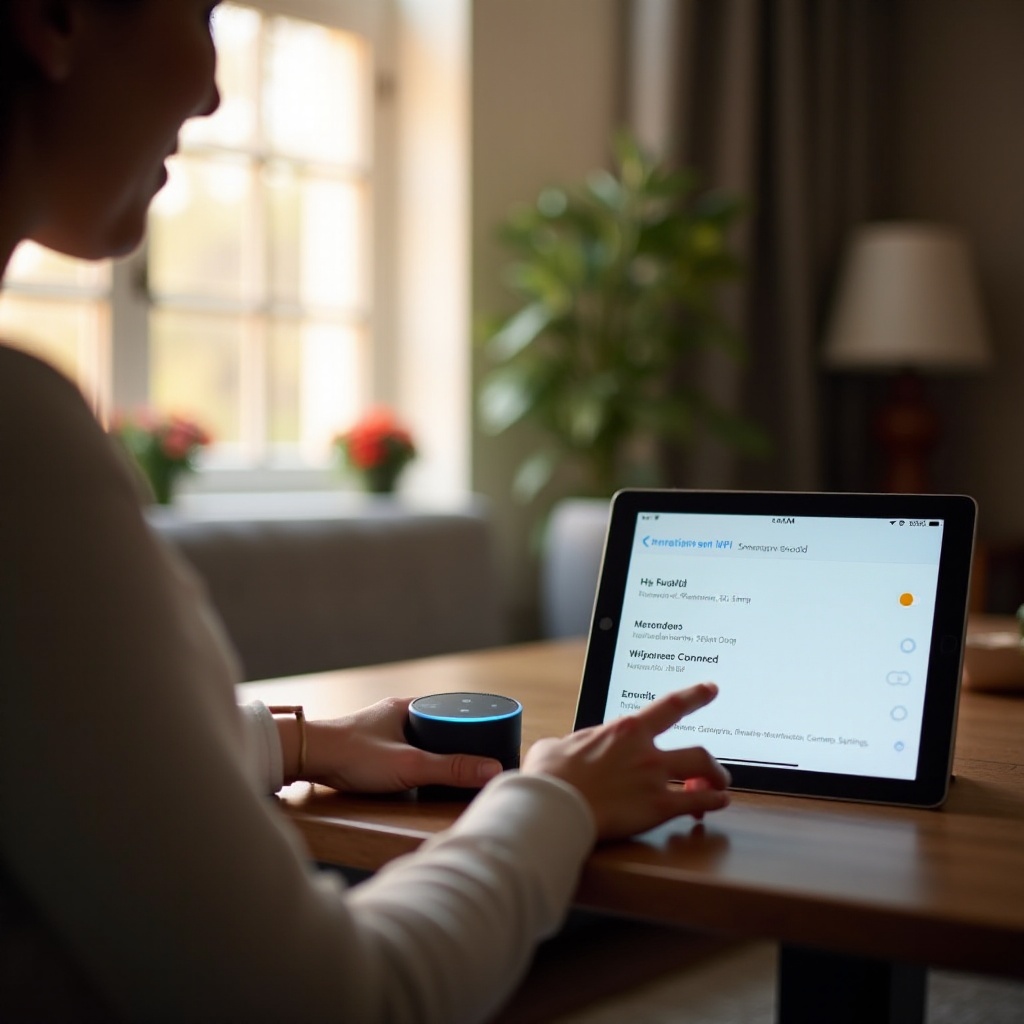
There are numerous scenarios where you might want to connect your Alexa device to a new WiFi network. Perhaps you’ve recently upgraded your internet plan or installed a faster router. Sometimes, routers after upgrades or resets change network names or passwords, which necessitate adjusting your smart devices accordingly. Additionally, relocating to a new living space or office triggers a change in your WiFi network settings, requiring a reconfiguration of your smart devices.
Understanding these scenarios prepares you for the steps needed to establish a successful connection between your Alexa device and the new WiFi network. Next, we’ll outline how to best prepare for this connection process.
Preparing Your Alexa Device for WiFi Connection
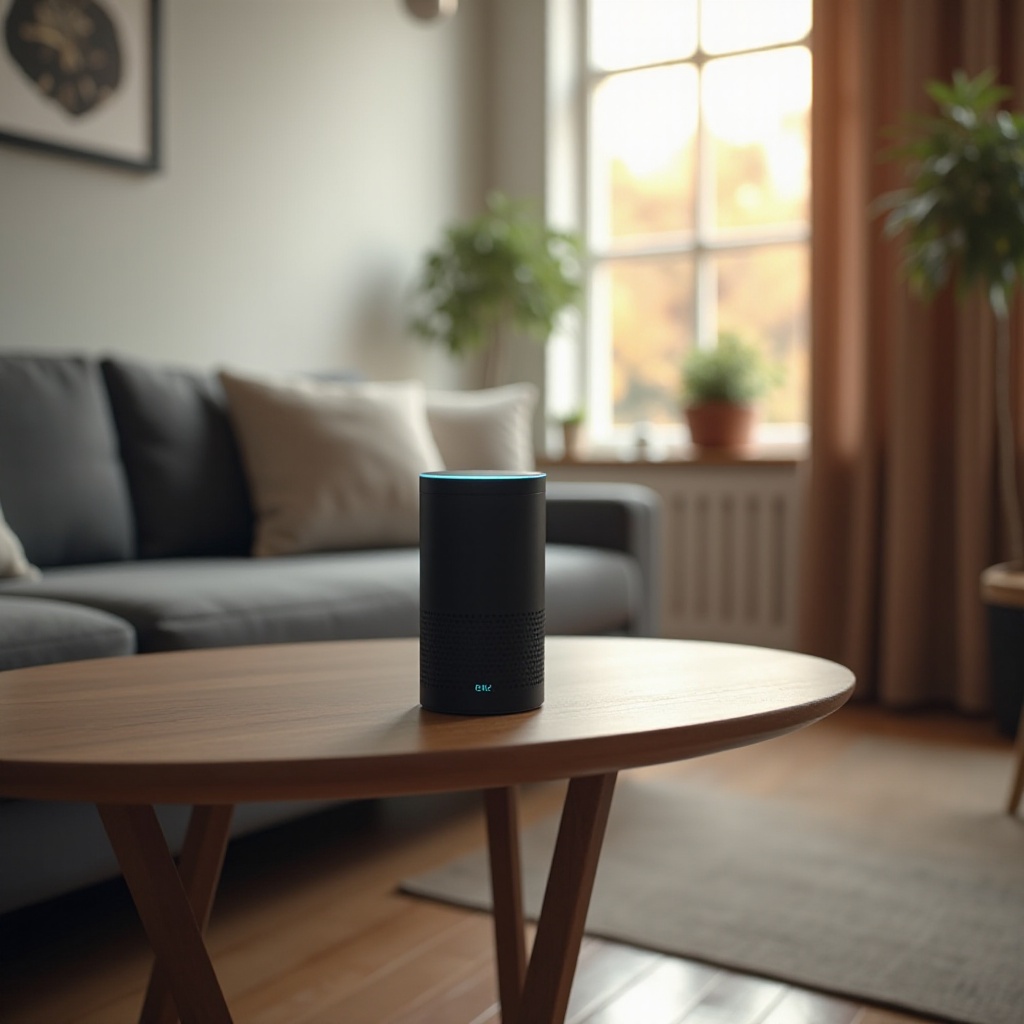
Before you begin connecting your Alexa to a new WiFi network, it is critical to make necessary preparations for a hassle-free setup.
Verify Device Compatibility: Ensure your Alexa device is compatible with the new WiFi network. For instance, some older Alexa models may not support newer frequencies like 5 GHz.
Gather Network Information: Collect essential details about your WiFi network, including the SSID (network name) and its password. You can usually find this info on the router or in network settings.
With these preparations sorted, you can now proceed to connect your Alexa seamlessly to your new WiFi network.
Step-by-Step Guide to Connecting Alexa to New WiFi
Follow these steps to successfully connect your Alexa to a new WiFi network:
-
Activate Setup Mode on Alexa: Begin by placing your Alexa device into setup mode. Most devices require you to press and hold the action button until the ring light turns orange.
-
Use the Alexa App for Network Setup: Open the Alexa app on your smartphone or tablet, ensuring you’re logged into your Amazon account.
-
Entering WiFi Credentials in the App:
- Select your Alexa device from the device list.
- Find ‘WiFi Network’ under Device Settings and choose ‘Change’.
- Enter the SSID and password of your new WiFi network when prompted.
Upon completing these steps, your Alexa should be connected to the new WiFi network and ready for use. If hurdles arise, troubleshooting may be necessary.
Troubleshooting Common Connectivity Issues
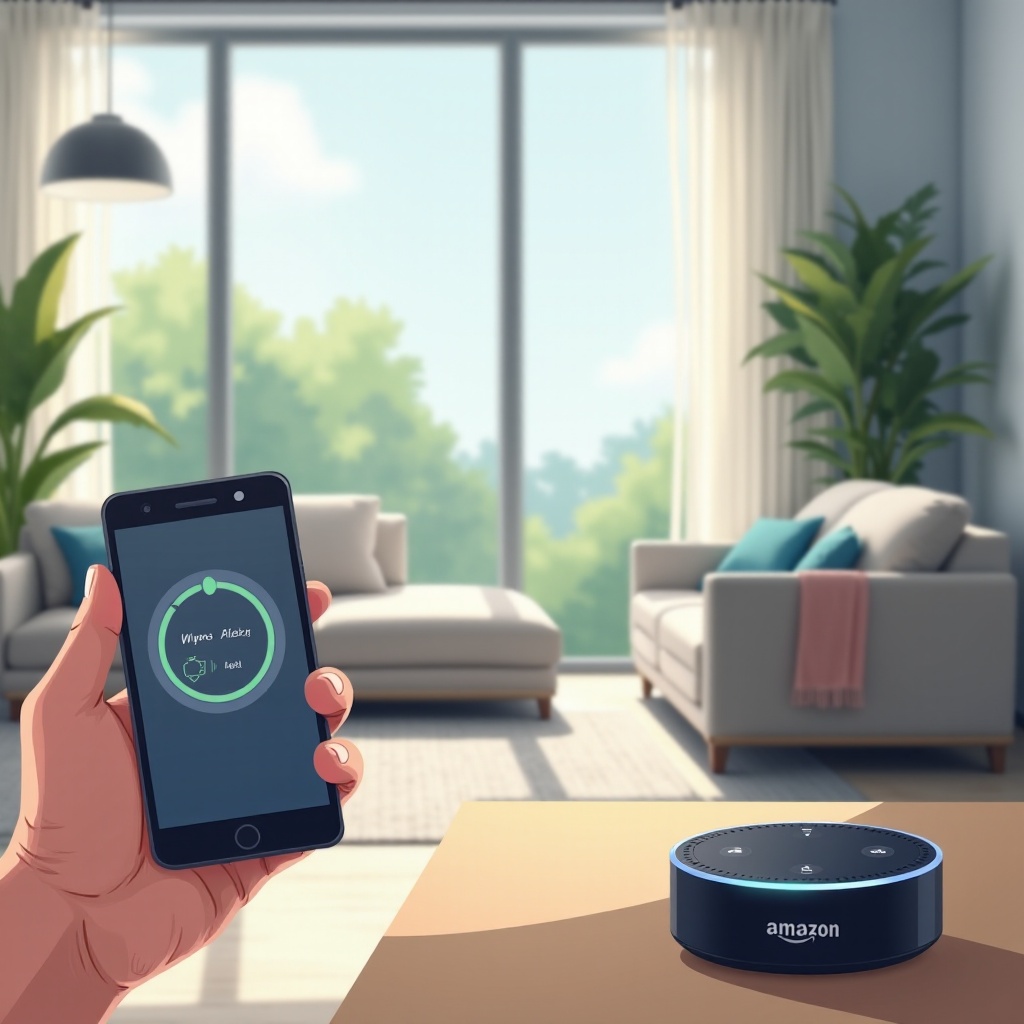
Even with the right steps, issues can surface when connecting Alexa to a new WiFi network. Here’s how to solve them:
Network Not Found Solution: If the new network doesn’t appear, confirm your router is broadcasting the SSID, and make sure the Alexa device is within viable range.
Dealing with Incorrect Password: Double-check your password input for errors, such as case sensitivity, which can hinder connection success.
Fixing Intermittent Connectivity: Should your connection be unstable, try restarting both the router and Alexa device to re-establish a stronger link.
Resolving these common issues allows you to proceed with enhancing Alexa’s performance and optimizing smart home setups.
Enhancing Alexa’s Performance Post WiFi Connection
Post WiFi connection, refining settings ensures enhanced Alexa performance.
Customizing Settings for Better Functionality: Access advanced settings in the Alexa app, which lets you tweak features for improved usage, such as voice recognition accuracy and personalized voice profiles.
Leveraging Alexa’s Features with Stable WiFi: Utilize Alexa’s vast array of capabilities with a stable connection, exploring routines, smart home controls, and third-party skills efficiently.
By optimizing these settings, Alexa should function at peak capacity, offering a full spectrum of smart home enhancements.
Conclusion
Following the detailed guide means you can now connect your Alexa device to a new WiFi network with ease. This seamless switch assures you maintain the broader array of capabilities Alexa offers. Remember to uphold a strong and stable connection to prevent service interruptions.
Frequently Asked Questions
What if my Alexa device won’t connect to the new WiFi network?
Check if your Alexa device is updated and try resetting the setup mode. A soft reset on your router can also help.
Can I switch between multiple WiFi networks easily?
Yes, switching networks is simple via the Alexa app. Simply select a new network from the device settings.
How do I reset my WiFi settings on Alexa?
To reset WiFi settings, perform a factory reset on your Alexa device, and follow specific device instructions.