How to Connect AirPods to a PC Laptop
Introduction
AirPods offer exceptional wireless audio quality, compatible not just with Apple devices but also PC laptops. As users seek to enjoy seamless audio across platforms, understanding how to connect AirPods to a PC becomes essential. Whether for music, gaming, or virtual meetings, following a few efficient steps allows a frustration-free connection.
Preparing Your Devices for Connection
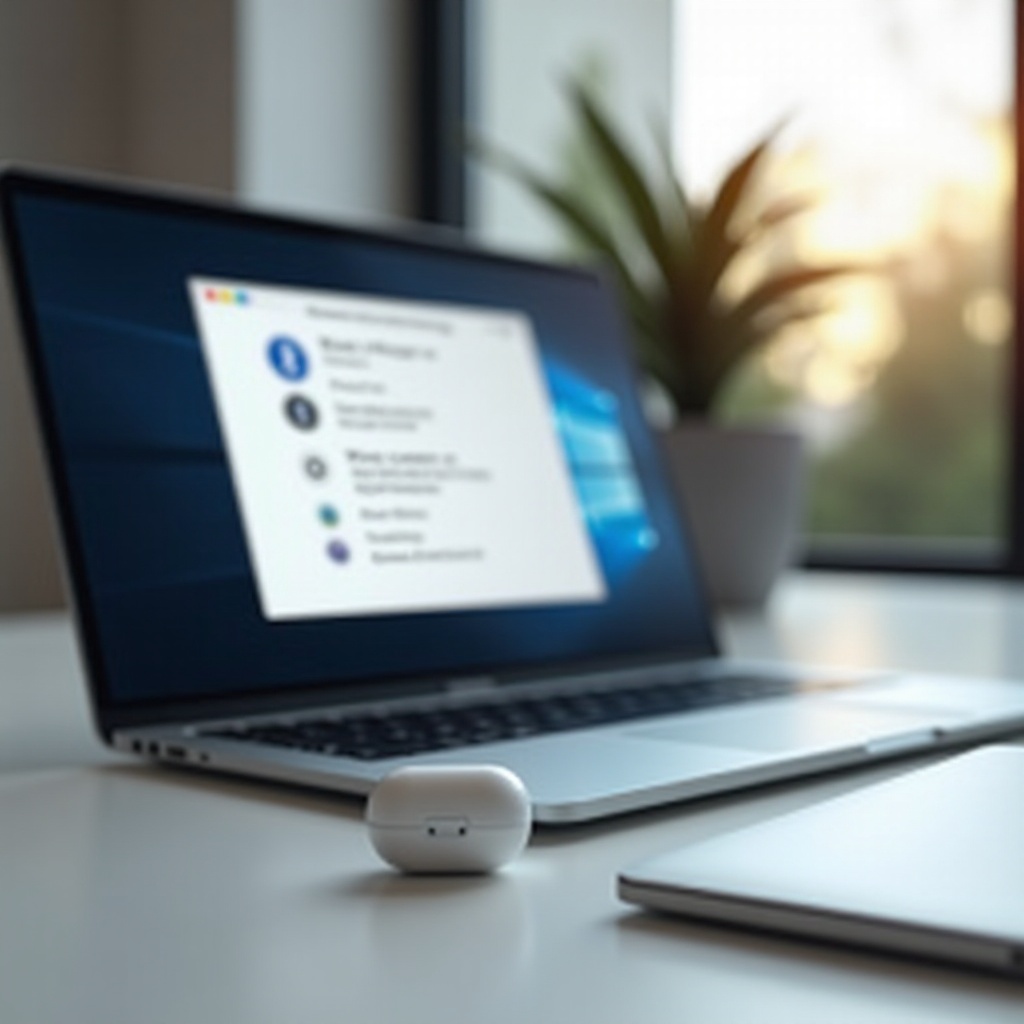
Successful connectivity starts with ensuring both your AirPods and PC are ready.
- Ensure your AirPods are charged and functioning. Low battery can disrupt the pairing and lead to unstable connections.
- Confirm Bluetooth is enabled on your PC laptop. Without Bluetooth, your AirPods cannot establish a connection.
With devices properly prepared, transitioning into the connection process is smooth and sets the stage for successful pairing.
Step-by-Step Guide to Connecting AirPods to a PC Laptop
Establishing a connection between your AirPods and PC laptop involves straightforward steps:
- Activate Bluetooth on your PC:
- Open ‘Settings’ and navigate to ‘Devices’.
-
Select ‘Bluetooth & other devices’ and turn Bluetooth ‘On’.
-
Put your AirPods in Pairing Mode:
- Place AirPods in their charging case and open the lid.
-
Hold the button on the case’s back until the LED turns white.
-
Connect through Windows Settings:
- In ‘Bluetooth & other devices’, click ‘Add Bluetooth or other device’.
- Select ‘Bluetooth’ and choose your AirPods from the list.
Even with these steps covered, connectivity issues may still arise, prompting the need for troubleshooting.
Troubleshooting Common Connectivity Issues
When facing issues connecting AirPods to a PC laptop, here are simple solutions:
- If your PC can’t detect AirPods, ensure they’re still in pairing mode with the LED light showing white. Consider restarting your PC.
- Resolve audio delays or sync issues by updating Bluetooth drivers. Disconnect other Bluetooth devices to reduce interference.
Successfully overcoming these issues leads to improved sound quality, transitioning into tips for maximizing audio potential.
Maximizing Your Audio Experience with AirPods on PC
Optimizing audio experience with AirPods connected to a PC includes:
- Adjust sound settings via the control panel, selecting ‘Playback’ and using balance and quality adjustments.
- Enhance sound using third-party software like Equalizer APO for more rigorous audio control.
With optimized performance, reviewing additional practices can prevent future connectivity problems and maintain excellence in usage.
Additional Tips for Seamless Connectivity
Sustain reliable AirPods connectivity with these additional strategies:
- Regularly check for AirPods firmware updates via Apple devices to resolve connectivity challenges.
- Maintain performance with routine cleaning of AirPods and their case. Dirt buildup can impede sound quality.
Integrating these practices ensures ongoing reliability, benefiting from AirPods’ capabilities across varied platforms.
Conclusion
Connecting AirPods to a PC laptop is a seamless process when approached step-by-step. From preparations to troubleshooting and optimization, users enhance their cross-device experiences, tapping into AirPods’ versatile functionality effortlessly.
Frequently Asked Questions
Can AirPods be connected to any PC?
Yes, AirPods can connect to PCs equipped with Bluetooth. Ensure drivers are installed and Bluetooth is active.
How can I fix audio delays when using AirPods with my PC?
Update Bluetooth drivers, and disconnect other Bluetooth devices to minimize interference and improve sync.
Is there a way to improve the microphone quality of AirPods on a PC?
Adjust microphone settings via your PC’s sound menu, and explore software enhancements for clearer input.