How to Connect Beats Headphones to Your MacBook in 2024
Introduction
Connecting Beats headphones to your MacBook unlocks a superior audio experience, facilitating productivity and leisure with enhanced sound quality. This guide covers compatibility checks, device preparation, connection troubleshooting, and optimizing sound settings, ensuring your Beats and MacBook work harmoniously.
Understanding Your Beats Headphones Compatibility
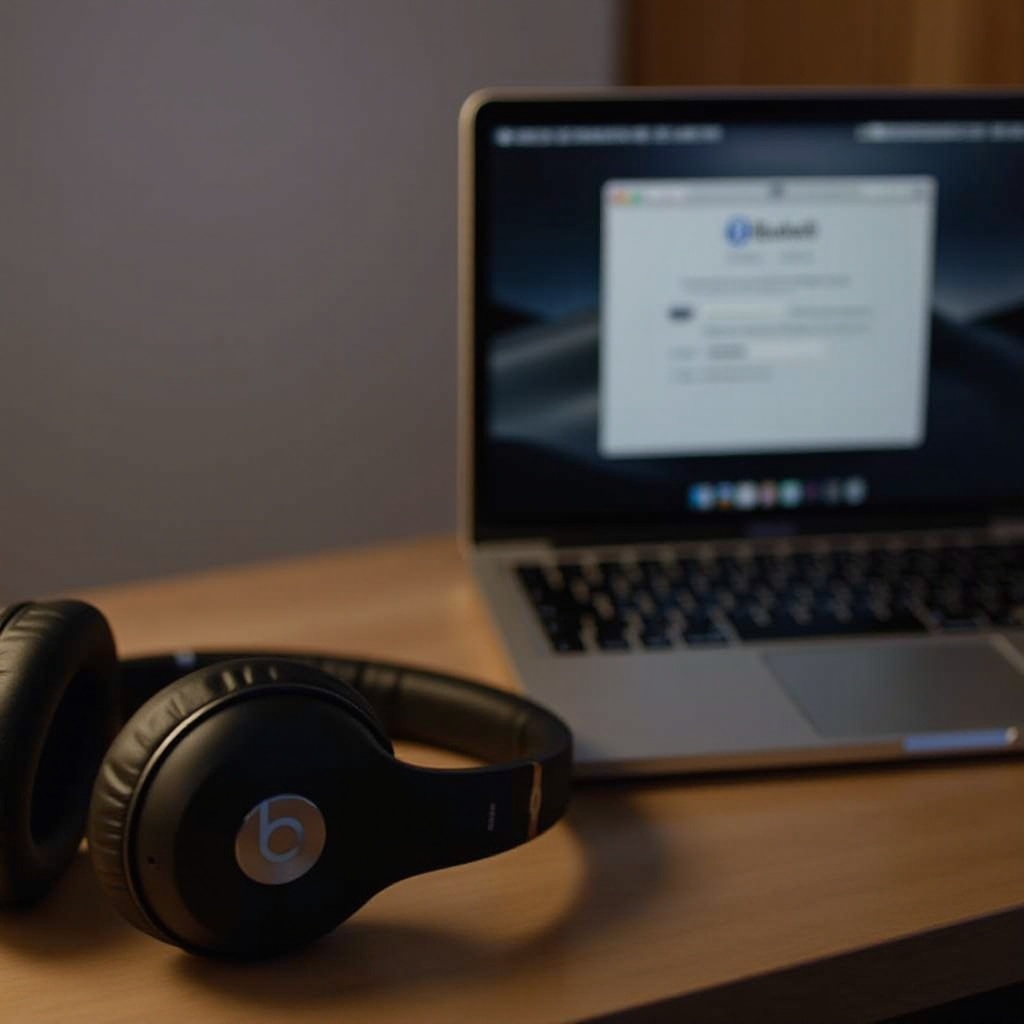
Before proceeding, it’s crucial to confirm the compatibility between your Beats headphones and MacBook model. This step ensures a smooth connection process.
- Identify Your Beats Model: Different Beats models come with varying features that influence compatibility.
- Verify MacBook Version: Ensuring your MacBook runs the latest macOS version can enhance connectivity features.
With compatibility confirmed, we move to device preparation for a wireless connection.
Preparing for a Wireless Connection
Successful wireless connections start with proper device setup. Complete the following preparation steps:
- Charge Your Beats Headphones: A fully charged device avoids unexpected shutdowns during pairing.
- Update MacBook Operating System: Keeping macOS up to date provides the latest connectivity improvements.
Both devices primed, we now delve into establishing a Bluetooth link.
Establishing a Bluetooth Connection
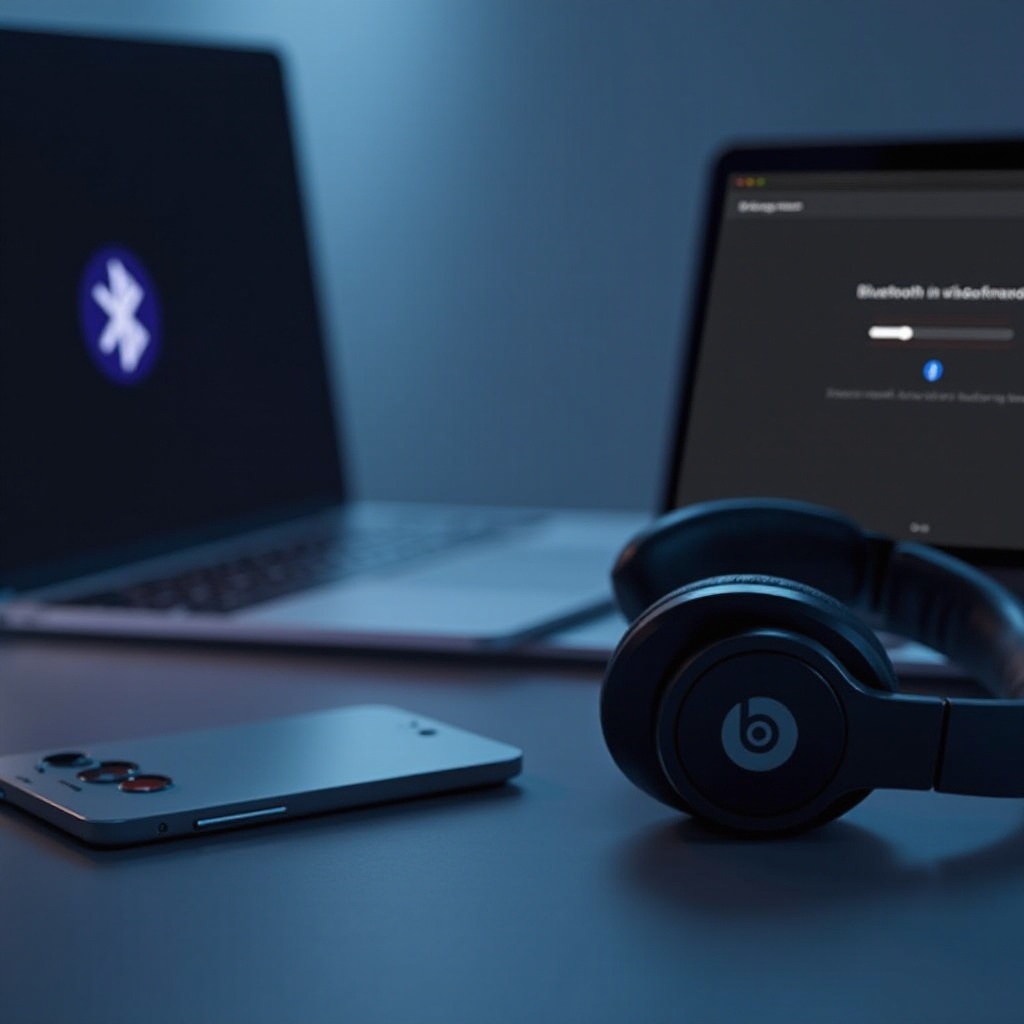
Bluetooth is the most straightforward method to connect Beats headphones to a MacBook.
- Enable Bluetooth on MacBook: Go to the Apple menu, select ‘System Preferences,’ then ‘Bluetooth.
- Pairing Process:
- Activate pairing mode by holding the Beats power button until the indicator light flashes.
- Find your device in the MacBook’s Bluetooth list and click ‘Connect.
Once connected, enjoy enhanced sound. Troubleshooting tips address any connectivity glitches.
Troubleshooting Common Connection Issues
Should obstacles arise, troubleshooting common issues will help maintain a stable connection.
- Resolve Signal Interference: Position devices away from potential disruptors like metal objects.
- Reset Bluetooth Settings: If connection falters, toggle Bluetooth off then back on.
- Reboot Beats Headphones: Restart by switching off and holding the power button to reset.
Continuing with wired alternatives provides another viable connection option.
Exploring Wired Connection Alternatives
For those preferring stability, a wired connection offers another viable solution.
- Setup Wired Connection: Use an appropriate audio cable to link your headphones to the MacBook’s audio jack.
- Wired vs. Wireless: Stability is the main advantage of wired connections, though they restrict movement compared to Bluetooth.
Switching gears, optimizing audio settings enhances overall sound quality.
Enhancing Your Audio Experience
Once connected, further refine your auditory setup through MacBook sound settings and Beats features.
- Adjust Sound Settings: Navigate to System Preferences and customize sound to your liking.
- Leverage Beats Features: Use compatible apps to tailor sound profiles and settings.
This optimization ensures your audio experience is maximized, summarizing with a recap of key steps and benefits.
Conclusion
Connecting Beats headphones to your MacBook can enhance both productivity and entertainment, transforming auditory experiences with clear, immersive sound. This guide equips you with the knowledge to achieve seamless connectivity and solitary satisfaction.
Frequently Asked Questions
Can I connect multiple Beats headphones to my MacBook simultaneously?
MacBooks can connect to multiple Bluetooth devices, but simultaneous audio streaming requires third-party applications.
What should I do if my Beats headphones aren’t showing up in Bluetooth devices?
Ensure the headphones are in pairing mode. If issues persist, restart both devices and retry connection.
Is there a specific Beats app for macOS to optimize audio settings?
No standalone Beats app exists for macOS, but sound adjustments can be made through System Preferences and third-party audio enhancement apps.