How to Put Bose Headphones into Pairing Mode: The Ultimate 2024 Guide
Introduction
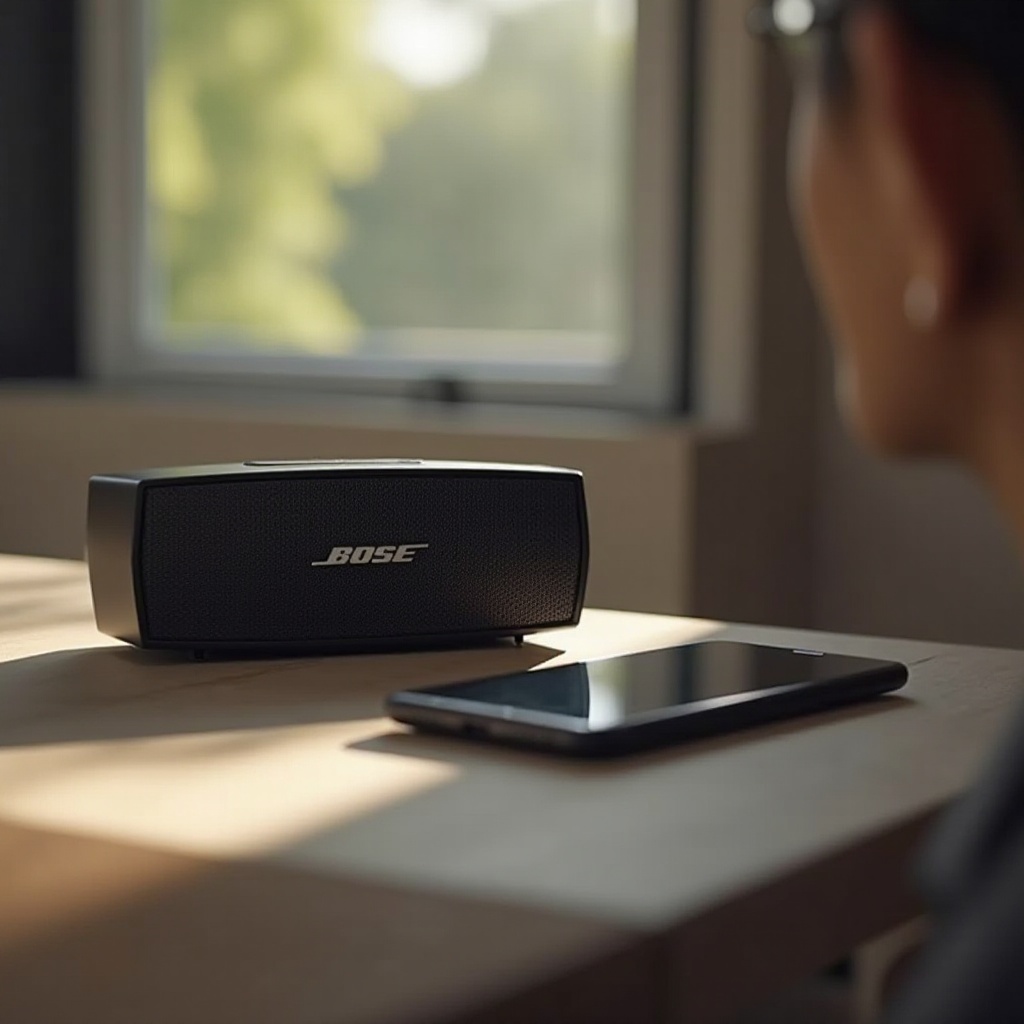
Dive straight into connecting your Bose headphones to various devices with ease. Knowing how to pair them correctly is essential for enjoying music, making calls, and streaming content. This guide covers step-by-step instructions for popular Bose models, from the Bose QC35 to the QuietComfort Earbuds. We’ll also explore solutions to common pairing problems to ensure a seamless user experience.
What is Bluetooth Pairing?
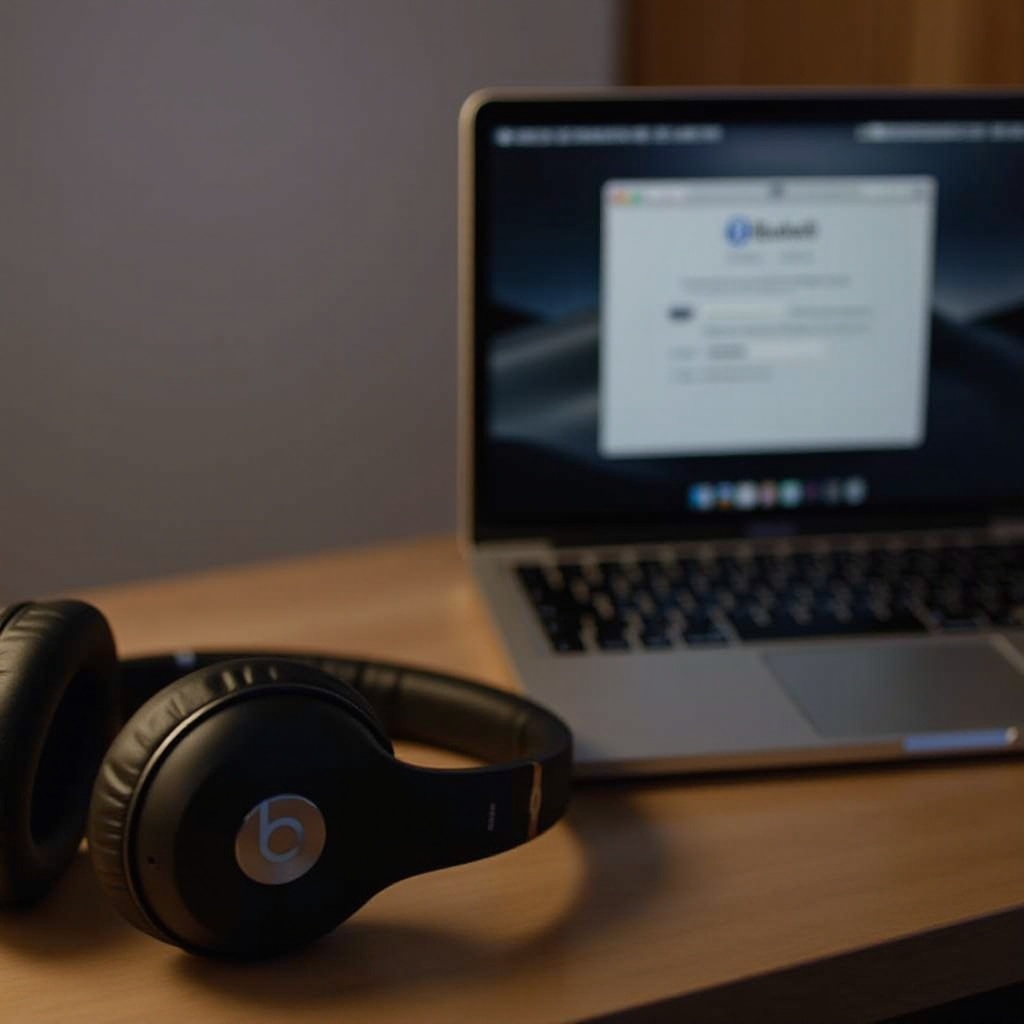
Bluetooth pairing refers to the process of wirelessly connecting your Bose headphones to other devices, enabling versatile audio applications. A stable Bluetooth connection is fundamental for accessing all the features that Bose headphones offer. Understanding this technology will aid in troubleshooting any connectivity issues and prepare you for the following operational steps.
Preparing Your Bose Headphones for Pairing
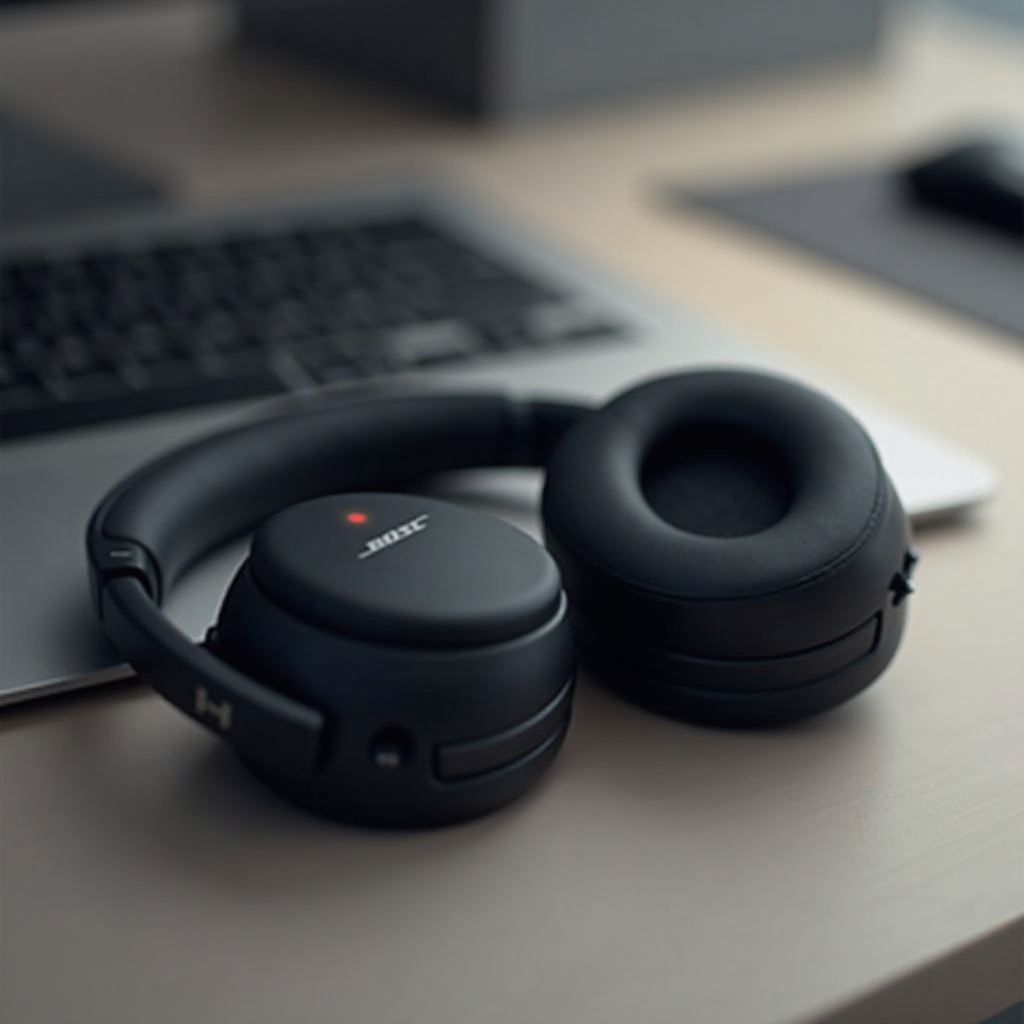
Properly preparing your headphones facilitates an uninterrupted pairing process. Here’s what you need to do:
– Check Battery Levels and Updates: Ensure your headphones are fully charged. Low battery power can interfere with pairing. Update your headphones via the Bose Connect app to optimize performance.
– Turn On Your Headphones Properly: Power on your Bose headphones by pressing the power button until the status indicator appears. This ensures readiness for the pairing process.
Having your device prepared streamlines the pairing journey, preventing common issues that could arise during connection attempts.
Step-by-Step Guide for Different Bose Headphone Models
Discover how pairing procedures differ across various Bose headphone models:
– Bose QC35: Hold the Bluetooth button until the LED flashes blue, then navigate to your device’s Bluetooth settings and select ‘Bose QC35’. Confirm any prompts to complete pairing.
– QuietComfort Earbuds: Insert the earbuds, press the touch surface on the left earbud until you hear ‘ready to connect’. Locate ‘QuietComfort Earbuds’ in your Bluetooth settings and establish connection.
– Bose SoundLink: Activate Bluetooth by pressing the button until the indicator blinks. On your device, find ‘Bose SoundLink’ and connect.
This section ensures users can pair their headphones across different models effectively, leveraging Bose’s unique functionalities.
Troubleshooting Common Pairing Problems
Sometimes pairing might not go as planned. Here’s how to troubleshoot:
– Resetting Your Bose Headphones: A reset often resolves connectivity issues. Hold the power button for 10 seconds (or follow reset instructions for your model).
– Device Compatibility Issues: Confirm your device supports Bluetooth and is compatible with your Bose model. If issues persist, attempt pairing with an alternative device.
Understanding these troubleshooting methods helps maintain ongoing connections and minimizes any disruptions.
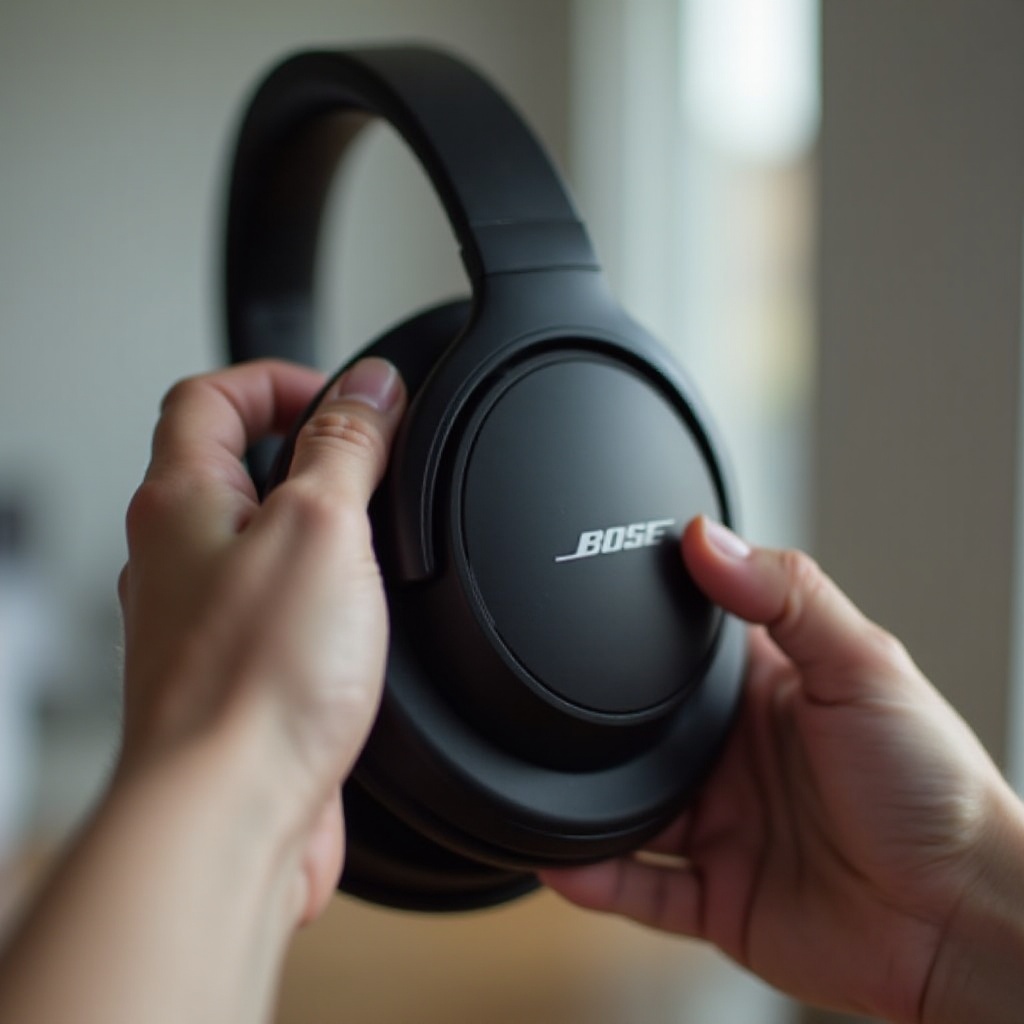
Tips for Optimal Use and Maintenance
Maintaining the quality and performance of your Bose headphones is crucial:
– Avoid exposing headphones to extreme temperatures and moisture.
– Store headphones in their case when not in use.
– Install regular software updates using the Bose Connect app.
– Use a dry, soft cloth to clean your headphones.
These tips ensure your headphones function at their best, offering an unparalleled audio experience.
Conclusion
Successfully pairing Bose headphones with various devices enhances your listening experience, making it wireless and convenient. With this guide, users can navigate pairing techniques with confidence and resolve any issues swiftly.
Frequently Asked Questions
How can I update my Bose headphones firmware?
Navigate to the Bose Connect app on your device, connect your headphones, and follow the prompts for automatic updates.
Can I pair Bose headphones with multiple devices simultaneously?
Bose headphones can remember multiple devices but connect to one at a time. Switching manually is required through Bluetooth settings.
What is the typical range for Bose Bluetooth headphones?
Bose headphones typically offer a Bluetooth range of about 30 feet, though environmental factors and model specifics can affect this.