How to Connect JLab Earbuds to Your Computer
Introduction
Connecting your JLab earbuds to your computer unlocks an enhanced audio experience, whether for work or leisure purposes. JLab earbuds are celebrated for their superior sound quality. To fully enjoy their benefits, a proper connection with your computer is essential. This comprehensive guide offers straightforward steps and valuable tips to ensure a smooth process.
Preparing Your Devices
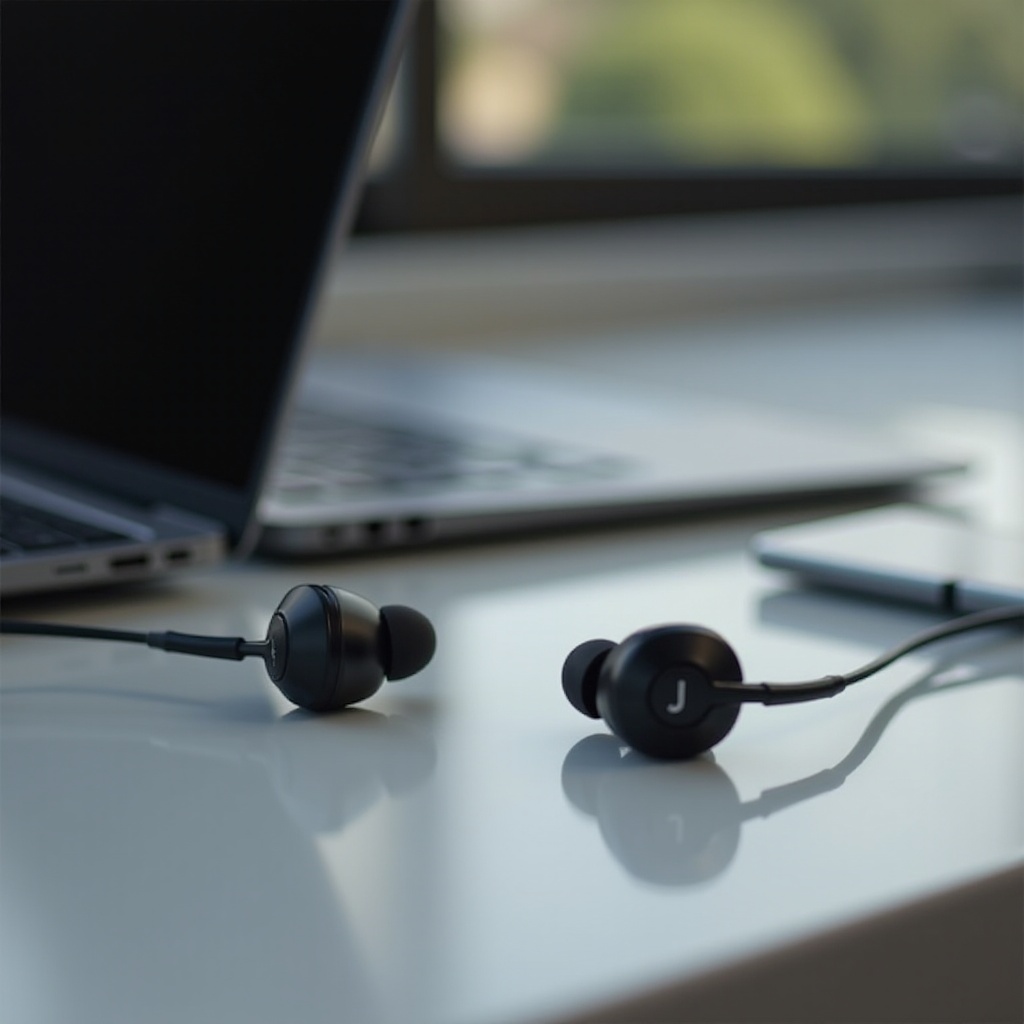
Before starting the connection process, it’s crucial to prepare both your JLab earbuds and your computer for compatibility and functionality.
- Ensure Earbuds Are Charged: Make sure your earbuds are fully charged to maximize connectivity and ensure uninterrupted sound during use.
- Check Computer Compatibility: Verify that your computer supports Bluetooth connections by checking the system settings to confirm Bluetooth functionality.
- Update Software and Drivers: Keep your computer’s operating system and Bluetooth drivers updated to prevent compatibility issues and improve performance.
Now that your devices are prepared, the next step involves establishing a Bluetooth connection.
Connecting Your JLab Earbuds via Bluetooth to Windows
Windows users can connect their JLab earbuds using Bluetooth by following these steps:
- Enable Bluetooth on Windows: Access the Start menu, select Settings, and click on Devices. Turn on Bluetooth using the toggle switch.
- Pairing Your JLab Earbuds with Windows: With Bluetooth enabled, click ‘Add Bluetooth or other device.’ Select Bluetooth from the list of options, then choose your JLab earbuds from the device list.
- Troubleshooting Windows Pairing Issues: If your earbuds do not appear, ensure they are in pairing mode. Verify that your Windows version is compatible and consider updating if necessary.
After establishing a connection on Windows, Mac users can follow a similar procedure for their devices.
Connecting Your JLab Earbuds via Bluetooth to Mac
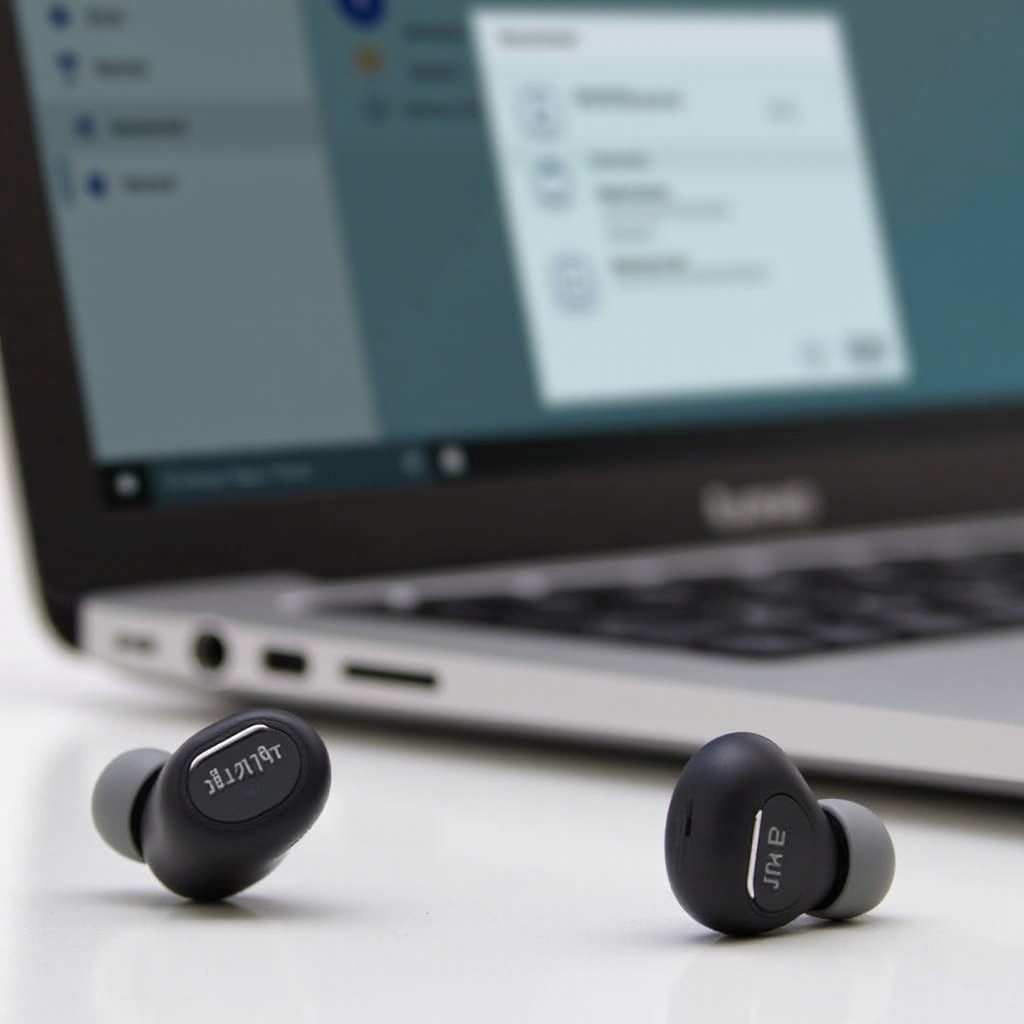
Mac users can enjoy seamless connectivity with their JLab earbuds by adhering to the following steps:
- Enable Bluetooth on Mac: Open System Preferences and click on Bluetooth to activate the feature.
- Pairing Your JLab Earbuds with Mac: Once Bluetooth is active, your earbuds should appear in the list of devices. Click ‘Connect’ next to your earbuds to pair them.
- Troubleshooting Mac Pairing Issues: If pairing fails, ensure your earbuds are in pairing mode. Restart Bluetooth or your computer to refresh the connection as needed.
With connectivity established, focus on optimizing your audio settings for an enhanced listening experience.
Enhancing Audio Experience
A successful connection is just the beginning. Fine-tuning your audio settings can greatly improve sound quality and user satisfaction.
- Adjust Audio Settings on Windows: Navigate to Control Panel, click on Sound, and set the playback device to JLab earbuds. Customize sound settings such as equalizer preferences.
- Configure Sound Preferences on Mac: In System Preferences, select Sound and choose your earbuds for audio output. Adjust balance, volume, and other settings to suit your preferences.
While your audio settings are optimized, occasionally, connectivity issues may arise that necessitate troubleshooting.
Common Troubleshooting Tips
Despite taking all necessary precautions, connectivity issues can occur. Here are some basic troubleshooting steps to help resolve them:
- Resetting Your JLab Earbuds: Hold the power button until the earbuds return to factory settings. This step can resolve persistent connectivity problems.
- Unpairing and Re-pairing: Remove your earbuds from the device list and restart the pairing process, which often clears issues with unresponsive connections.
- Checking for System Interference: Disable other nearby Bluetooth devices to prevent interference that can affect connectivity and sound quality.
Resolved issues should lead to a stable and high-quality audio experience.
Conclusion
Successfully connecting JLab earbuds to your computer can profoundly enhance your audio experience. By following these detailed steps and applying troubleshooting tips, users can enjoy stable, uninterrupted sound performance. Ensure your devices are prepared, keep your system updated, and proactively troubleshoot for optimal results.
Frequently Asked Questions
What to Do If Your Earbuds Don’t Appear?
Ensure your earbuds are in pairing mode and the Bluetooth feature is enabled on your computer.
How to Maintain Battery Health?
Regularly charge your earbuds and avoid exposure to extreme temperatures to prolong battery life.
How to Switch Between Multiple Devices?
Unpair from the current device and initiate pairing with the new device using the device’s Bluetooth settings.