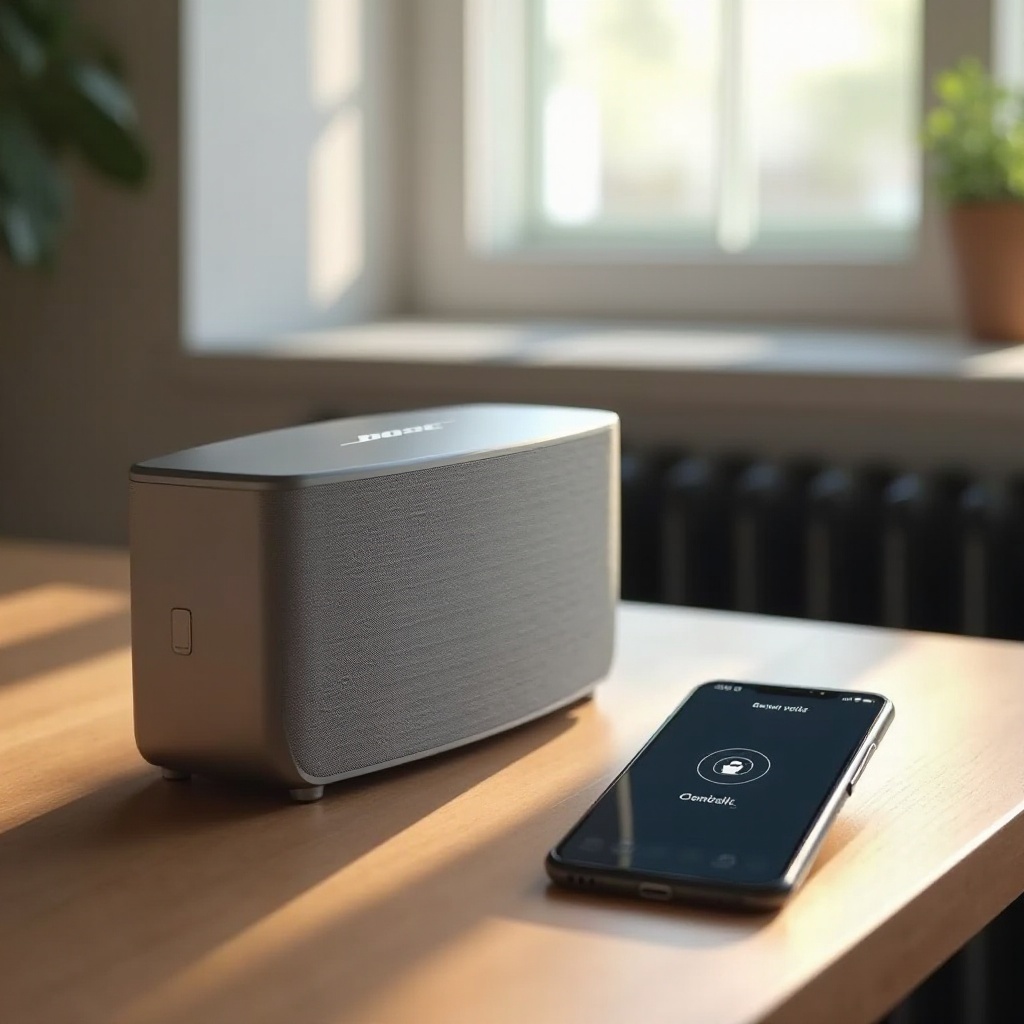
Effortlessly Connect Your Bose Speaker to iPhone
Introduction
Pairing your Bose speaker with your iPhone unlocks a superior audio experience that enhances music, calls, and media. With Bose’s renowned audio quality and Apple’s intuitive interface, connecting the two devices ensures a flawless auditory experience. This guide offers insights into easy pairing, troubleshooting, and optimizing sound quality.
Preparing Your Devices for Connection
Getting your Bose speaker ready to pair with your iPhone is the first step to enjoying seamless audio.
- Ensure Your Bose Speaker is Charged: Checking the speaker’s battery helps maintain a stable connection.
- Update Your iPhone to the Latest iOS: Make sure the iOS is updated by navigating to ‘Settings > General > Software Update’. Updated software ensures compatibility.
- Enable Bluetooth on Your iPhone: Open ‘Settings > Bluetooth’ on your iPhone and switch it on. This prepares your phone to discover available devices.
With both devices ready, you can proceed to connect your Bose speaker to your iPhone.
Step-by-Step Guide to Connecting Bose Speaker to iPhone
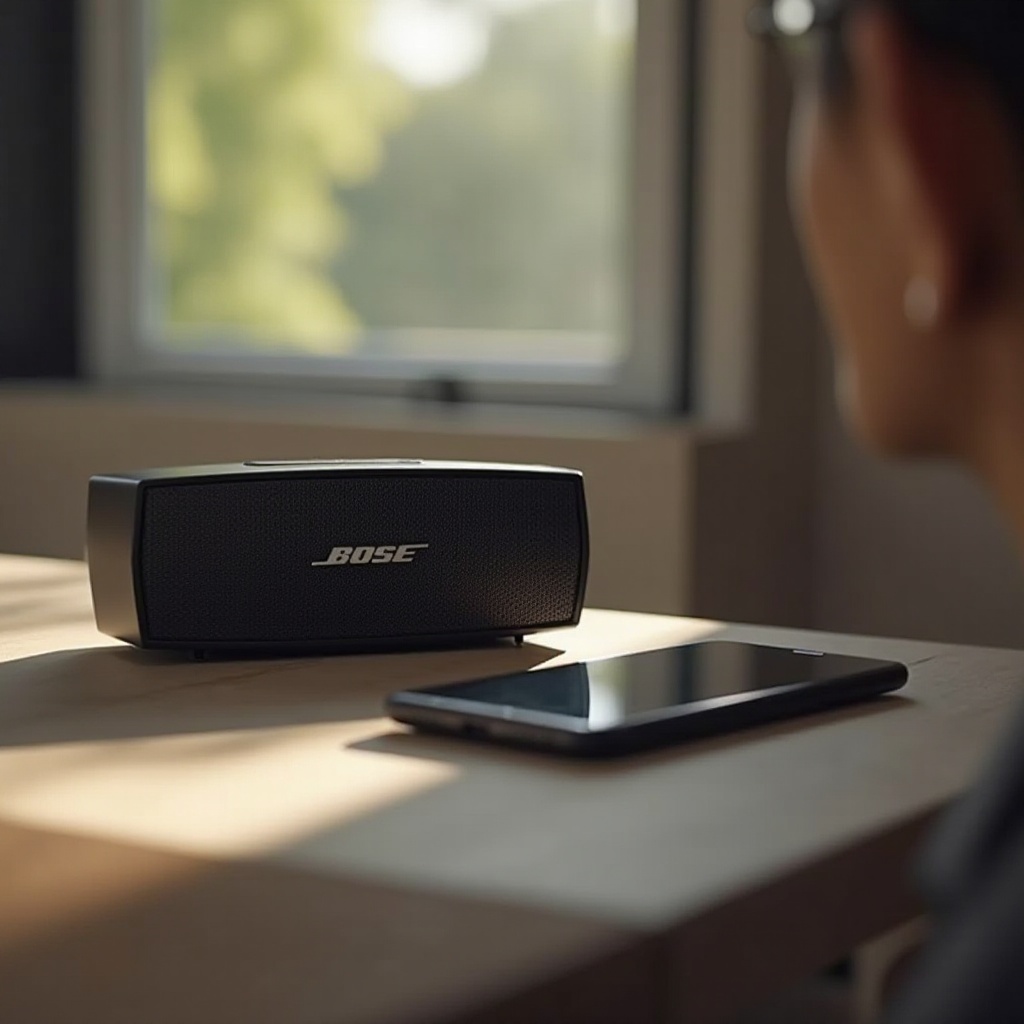
Establishing a connection between your Bose speaker and iPhone is simple with the following steps:
- Activate Pairing Mode on Your Bose Speaker: Press and hold the Bluetooth button until you hear a voice prompt or see a flashing light.
- Navigate iPhone Settings to Connect: On your iPhone, go to ‘Settings > Bluetooth’ and look for your Bose speaker in available devices.
- Verify Successful Connection: Once the speaker appears, tap its name to connect. Successful pairing is usually indicated by a confirmation sound on the speaker.
After connecting your devices, it’s important to address any connectivity issues that may arise.
Troubleshooting Common Connection Issues
Even after following the steps, connectivity issues might occur. Here’s what to do:
- What to Do If Your Speaker Doesn’t Appear: Ensure the speaker is within range and not paired with another device. Power cycling the speaker can help reset the pairing mode.
- Resetting Bluetooth Connection on iPhone: Turn Bluetooth off and on or restart the iPhone to refresh settings.
- Factory Resetting Your Bose Speaker: As a last resort, perform a factory reset by holding the power button or following the manual instructions.
With troubleshooting covered, you’re ready to explore more advanced connectivity tips.
Advanced Tips for Enhanced Connectivity
Optimize your connection with these advanced strategies:
- Using the Bose Connect App for Additional Features: Download the app for managing connections, updating firmware, and accessing special features.
- Connecting Multiple Devices to Your Bose Speaker: For multi-device pairing, enable the feature via the app if supported.
Now that connectivity is optimized, focus on enhancing audio quality post-connection.
Maximizing Audio Quality Post-Connection
Improving sound quality ensures you get the most from your Bose speaker:
- Exploring iPhone Equalizer Settings: Access ‘Settings > Music > EQ’ to adjust preferences. Experimenting with presets can enhance sound beautifully.
- Utilizing Compatible Codecs for Better Sound: Ensure codecs like AAC are enabled if supported, as they offer superior audio fidelity.
These steps will help deliver the best listening experience through your connected Bose speaker.
Conclusion
Connecting your Bose speaker to your iPhone is a straightforward task, made easier by troubleshooting and sound optimization techniques. These steps not only establish a reliable connection but also enhance the overall auditory experience.
Frequently Asked Questions
Can I connect multiple Bose speakers to one iPhone simultaneously?
Yes, by using Bose’s Party Mode or Stereo Mode if your model supports it.
How do I update the firmware on my Bose speaker?
Use the Bose Connect app to check for and install any available firmware updates.
What should I do if my Bose speaker keeps disconnecting from my iPhone?
Check for interference, ensure batteries are charged, and re-establish Bluetooth using troubleshooting steps.