How to Connect Soundcore Earbuds to Android (2024 Guide)
Introduction
Connecting your Soundcore earbuds to an Android device enhances your audio experience significantly. These wireless earbuds, renowned for their exceptional sound quality and design, may initially seem complex to set up. This comprehensive guide walks you through each step, ensuring you can connect your Soundcore earbuds to your Android device effortlessly. We also provide troubleshooting tips to tackle common issues, enabling you to enjoy uninterrupted audio delight.
Getting Started with Your Soundcore Earbuds
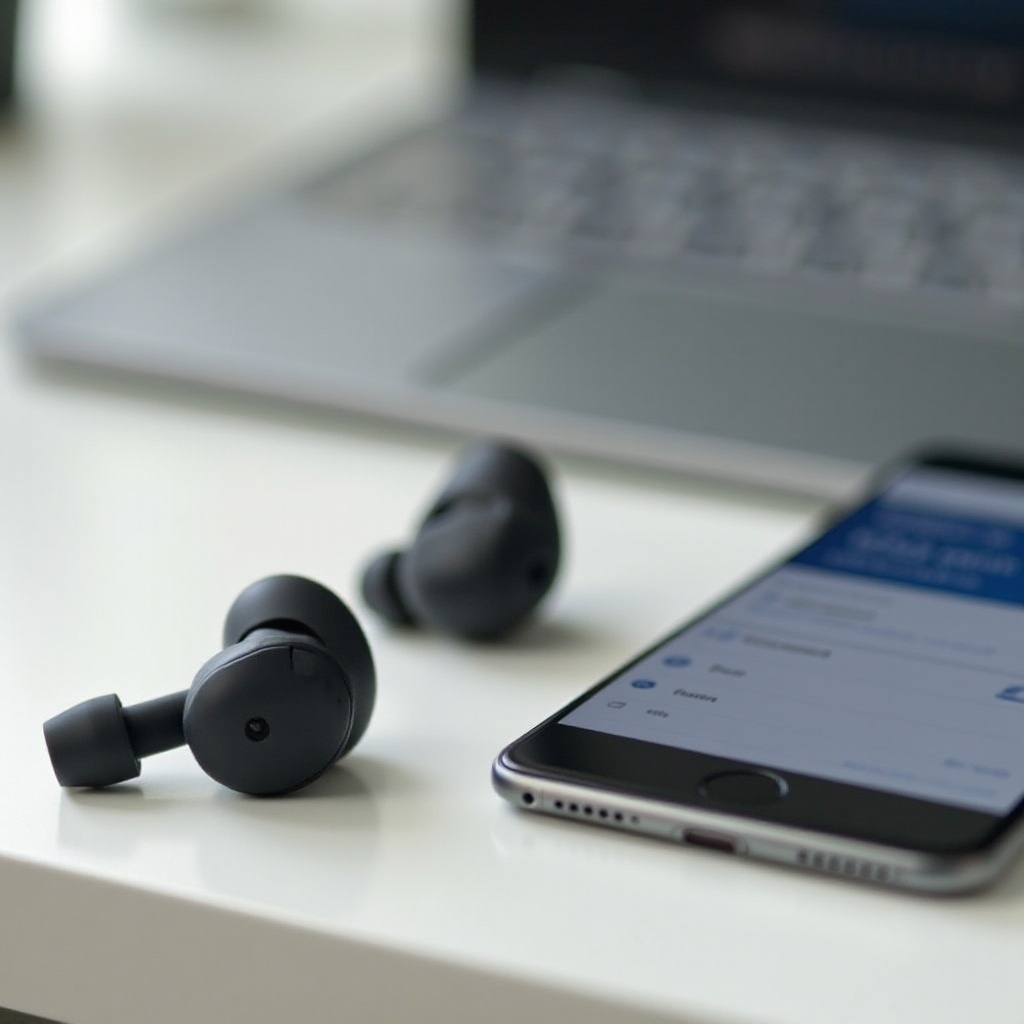
Before diving into the connection process, let’s ensure you’re well-prepared with the basics. First, it’s crucial to properly charge your Soundcore earbuds to prevent any power-related interruptions during the pairing process.
- Unboxing and Charging Your Earbuds: Begin by unboxing your Soundcore earbuds. Ensure they are fully charged before attempting to connect. Charging them initially guarantees sufficient power for pairing, avoiding interruptions.
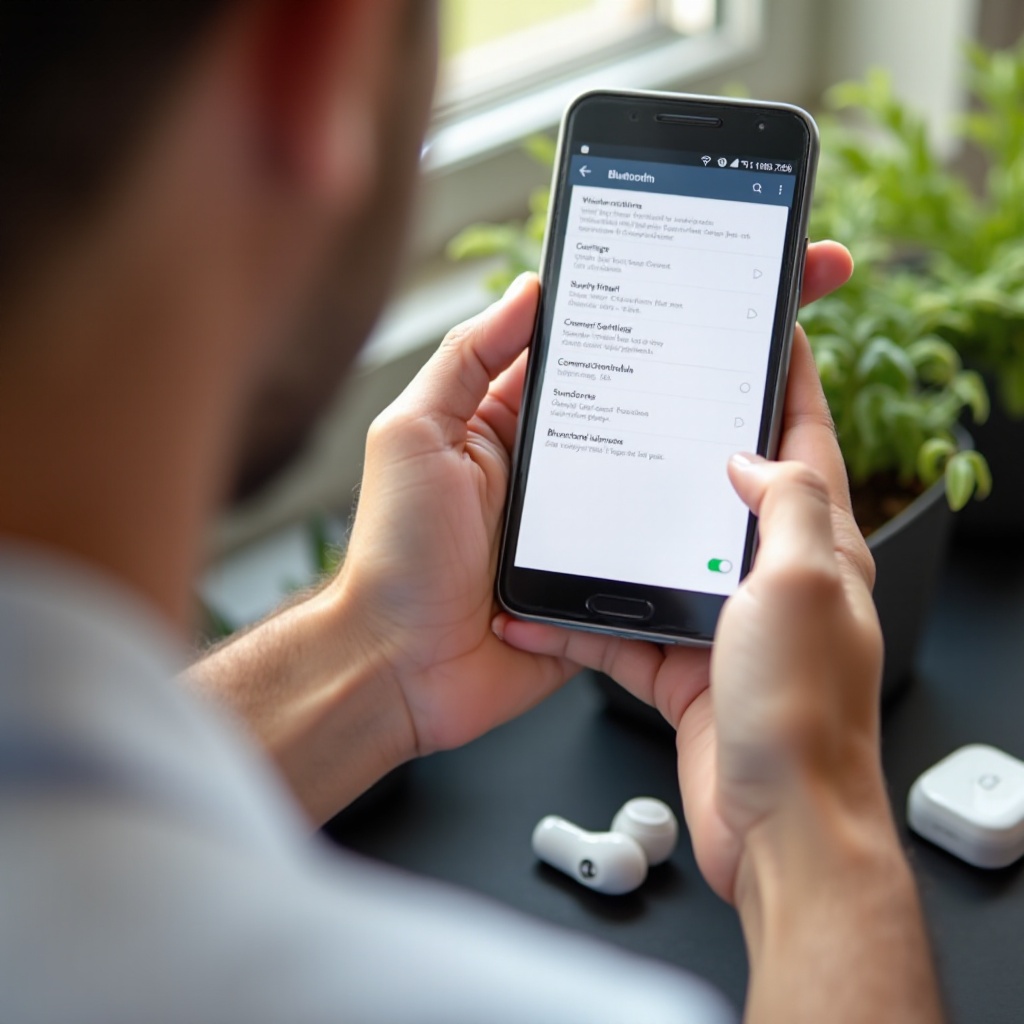
- Understanding Bluetooth Connectivity Basics: Bluetooth technology permits devices to connect wirelessly over short distances. Make sure Bluetooth is activated on your Android device. Familiarize yourself with your device’s Bluetooth menu, which is essential for managing connections.
Now that you’re prepared, we can move smoothly into the actual pairing steps.
Step-by-Step Guide to Pairing Soundcore Earbuds with Android
Equipped with the essentials, you’re ready to establish a connection. Follow these actionable steps to pair your earbuds:
- Activating Pairing Mode on Soundcore Earbuds: Switch on your Soundcore earbuds and place them in pairing mode. You’ll generally do this by pressing and holding the power button until a blinking light appears, indicating that the earbuds are discoverable by Bluetooth.
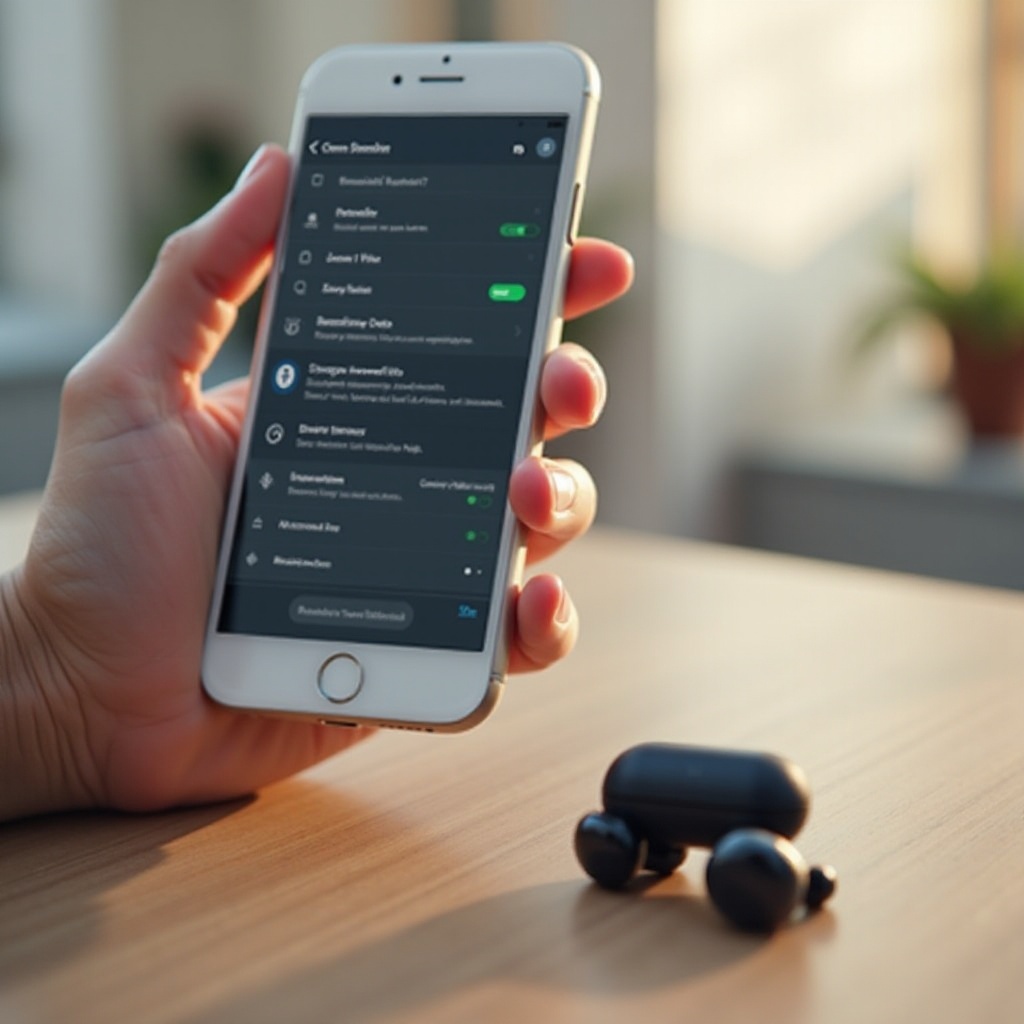
- Connecting via Android Bluetooth Settings: Navigate to the Bluetooth settings on your Android device. Among available devices, find and select your Soundcore earbuds from the list. Wait for a notification that confirms the successful connection.
- Confirming a Successful Connection: Once paired, your earbuds should be listed as ‘connected’ in the Bluetooth menu. You might hear an audio prompt from the earbuds confirming they are ready for use.
With a stable connection established, let’s address how to tackle potential challenges.
Troubleshooting Common Connectivity Issues
While the connection process is designed to be straightforward, sometimes issues arise. Here’s how to troubleshoot common problems:
- Interference and Connectivity Drops: Ensure there are no physical obstructions or electronic device interferences (such as microwaves) between the earbuds and your Android device, which could disrupt the connection. Keeping your device and earbuds within close proximity helps maintain a reliable link.
- Resetting Your Earbuds: If the earbuds fail to connect, a reset might be necessary. Typically, this involves placing them back into the charging case and initiating a reset via the button or sequence indicated in the user manual. A reset wipes previous connections, offering a fresh pairing attempt.
- Firmware Updates for Seamless Pairing: Regularly check for firmware updates via the Soundcore app, which address known bugs and enhance performance and connectivity.
Addressing these issues effectively is essential as you explore further customization and audio optimization features.
Enhancing Your Soundcore Earbud Experience
Once adequately connected, maximize your Soundcore earbuds’ potential through customization for an enriched experience:
- Exploring the Soundcore App Features: Download and install the Soundcore app on your Android device. The app allows you to personalize audio settings, apply firmware updates, and monitor battery levels seamlessly.
- Customizing Audio Settings for Optimal Sound: Experiment with various equalizer presets available in the app or create your own custom sound profiles. Tailor the listening experience to fit different genres or your personal preferences to enjoy music as intended.
By utilizing these features, you can enhance your earbuds’ audio quality significantly and ensure they remain in prime working condition.
Conclusion
With this guide, connecting your Soundcore earbuds to an Android device becomes an effortless task. Proper preparation, step-by-step adherence, and effective troubleshooting ensure a smooth and dependable connection. Unlock the full potential of your earbuds by exploring features available in the Soundcore app. Relish in wireless convenience and superior sound quality, making your audio experiences more enjoyable and immersive.
Frequently Asked Questions
How do I reset my Soundcore earbuds if they won’t connect?
To reset your Soundcore earbuds, usually place them in their charging case and use the reset button to initiate a reset. Consult your earbud’s manual for exact instructions.
Can I connect my Soundcore earbuds to multiple devices at once?
Most Soundcore earbuds support pairing with multiple devices but can actively connect to only one device at a time. Switch between devices through Bluetooth settings.
What should I do if my earbuds are connected but there’s no sound?
Ensure the volume is turned up on both your device and earbuds. Check your device’s audio output settings to confirm the earbuds are selected as the output device.