How to Connect Soundcore Headphones to MacBook for Seamless Audio Experience
Introduction
Connecting your Soundcore headphones to a MacBook unlocks a world of wireless audio excellence. Whether you’re listening to music, participating in video calls, or watching movies, connecting these devices properly ensures optimal sound quality and uninterrupted sessions. This guide provides practical steps to connect your headphones, helping you get the most out of your Soundcore experience.
Understanding Bluetooth on MacBook
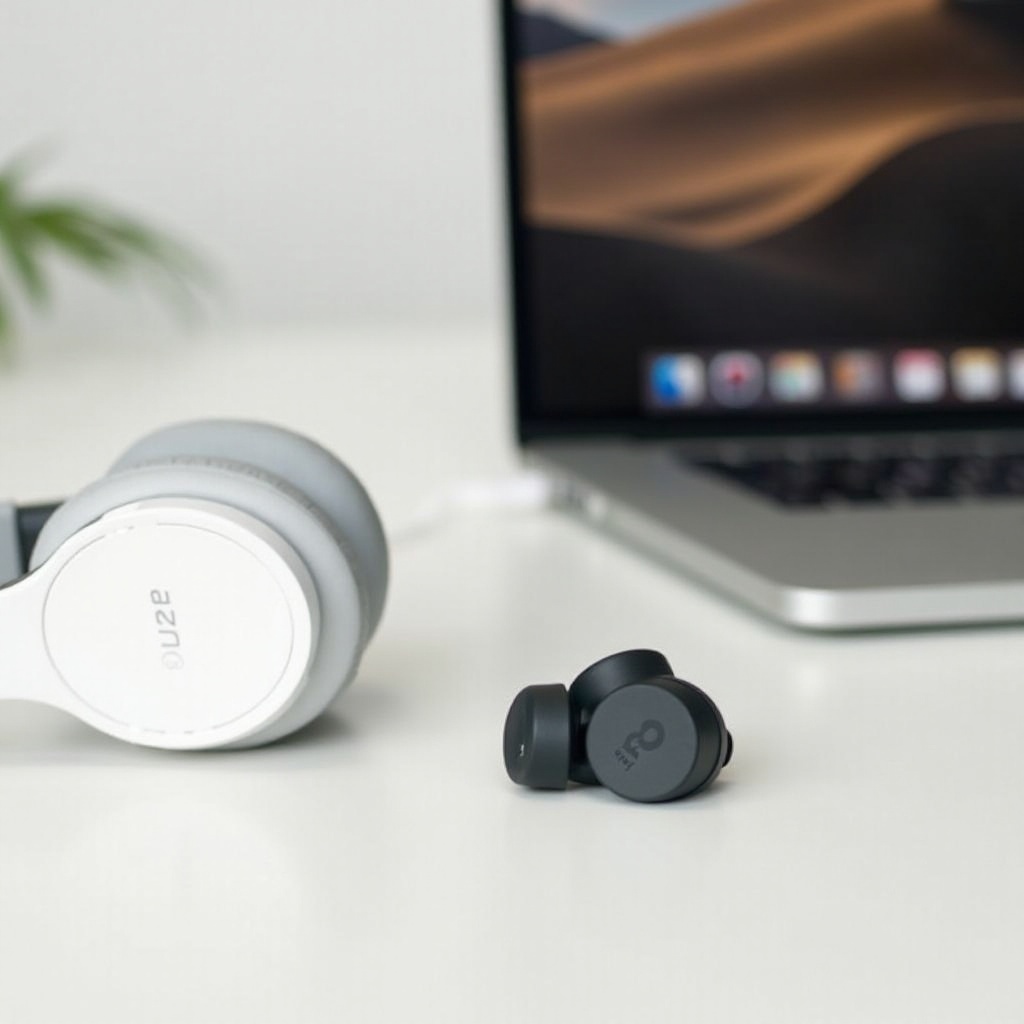
Understanding Bluetooth operations on your MacBook is the cornerstone of connecting your Soundcore headphones. Bluetooth technology facilitates easy pairing with wireless devices like headphones, offering a convenient and flexible listening experience.
-
Checking Bluetooth Compatibility: First, confirm your MacBook supports Bluetooth. Recent MacBook models come equipped with Bluetooth, which can be verified in system settings.
-
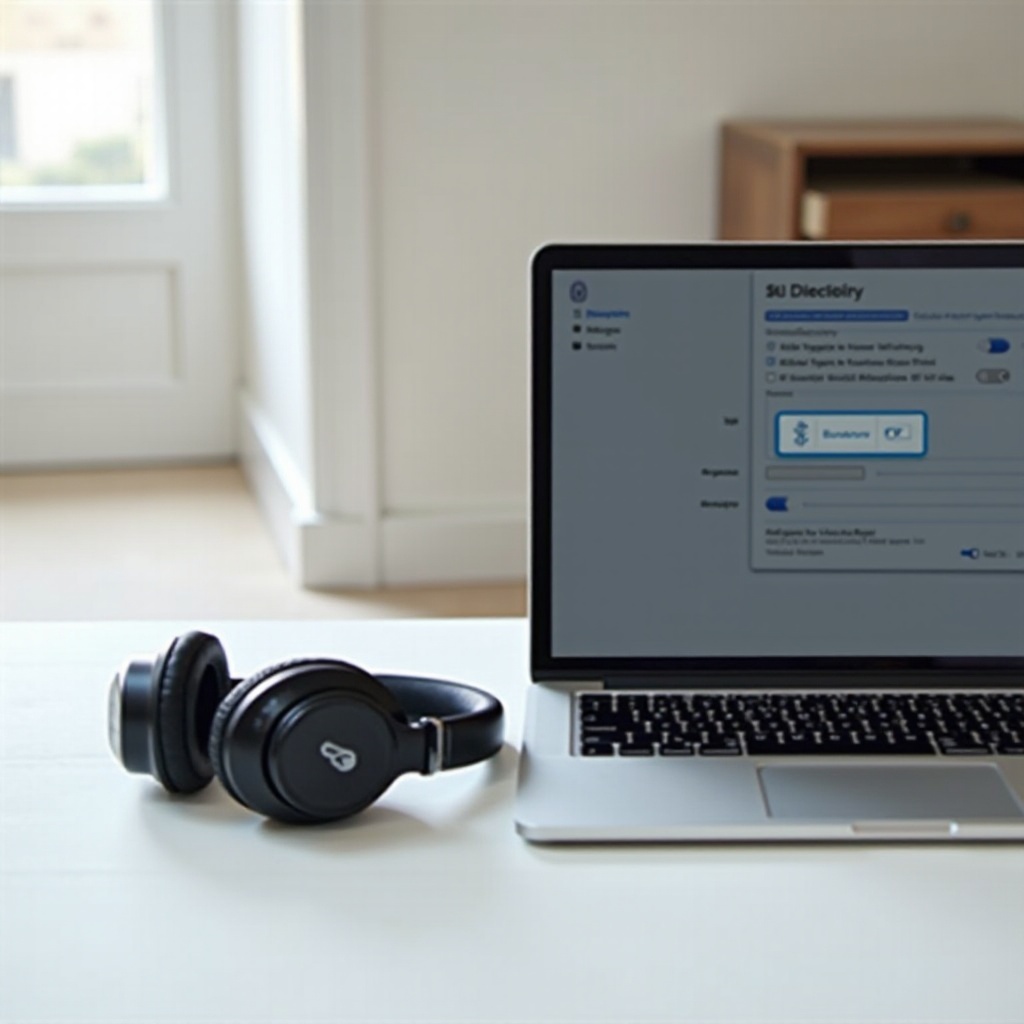
Accessing Bluetooth Settings: Next, locate the Bluetooth icon in the menu bar and click it to reveal options. Ensure Bluetooth is enabled and ready for pairing with your headphones.
With Bluetooth confirmed and enabled, the next step involves preparing your Soundcore headphones for connection, ensuring they are charged and set to pair easily.
Preparing Soundcore Headphones for Connection
Adequate preparation is essential for a smooth connection experience. By charging your Soundcore headphones and placing them in pairing mode, you reduce the risk of connectivity problems.
-
Charging Your Headphones: Begin by fully charging your Soundcore headphones using the provided USB cable. A fully charged device minimizes interruptions due to low battery during use.
-
Activating Pairing Mode: Many Soundcore models activate pairing mode by holding the power button until the indicator light flashes; this signifies readiness to connect.
Now that your headphones are ready, follow these clear steps to initiate a connection with your MacBook.
Step-by-Step Guide to Connecting Soundcore Headphones to MacBook
Here are straightforward instructions to connect your Soundcore headphones to your MacBook smoothly, ensuring a reliable connection.
-
Initiating Connection from MacBook: Access ‘System Preferences’ and select ‘Bluetooth’. You will see available devices. Ensure your Soundcore headphones appear on the list and click to connect.
-
Common Pairing Problems and Solutions: If your headphones don’t appear, check if they are in pairing mode and within range of your MacBook. Disabling and re-enabling Bluetooth can often help detect your headphones again.
Successfully connecting them paves the way for optimizing audio settings for superior sound clarity and quality.
Optimizing Audio Settings on MacBook
Once connected, adjusting audio settings on your MacBook can refine your listening experience, enhancing sound output.
-
Adjusting System Preferences for Sound Output: Within ‘System Preferences’, go to ‘Sound’, and choose your Soundcore headphones as the output device. Adjust volume levels to suit your comfort.
-
Personalizing Audio Experience: Discover and modify settings for features like noise cancellation and EQ adjustments, if available. Tailoring these options ensures your headphones deliver the sound you prefer.
Should you encounter any issues, the following section offers troubleshooting solutions.
Troubleshooting Common Issues
Connection challenges can arise, but with proper guidance, these issues can be resolved quickly.
-
Resolving Connectivity Challenges: Encountering disconnections or audio dropouts? Make sure other Bluetooth devices aren’t causing interference. Restarting both devices can help stabilize the connection.
-
Ensuring a Stable Connection: Keep your MacBook and headphones nearby to maintain a strong connection. Regular firmware updates for both may prevent connectivity issues.
By optimizing setup and resolving issues, you ensure a smooth and enjoyable user experience.
Conclusion
Connecting Soundcore headphones to your MacBook equips you with a wireless world of convenience and sound quality. This guide empowers you to navigate the initial setup easily and maximize your headphones’ capabilities. Enjoy seamless audio and explore the enhanced features your Soundcore headphones offer.
Frequently Asked Questions
How can I fix sound lag issues with my Soundcore headphones on MacBook?
Ensure all background applications are closed and check for system updates. Reconnecting often resolves lag issues.
What should I do if my MacBook doesn’t recognize my headphones?
Make sure your headphones are in pairing mode and within range. Restarting Bluetooth or resetting headphones often resolves recognition issues.
Is there a way to connect multiple Soundcore devices to a MacBook simultaneously?
MacBook primarily supports one audio output at a time. Frequently alternating connections allows for usage of multiple devices.